The Two-Minute Video That Took All Afternoon
On screen recordings, lost takes, and what it looks like when the tool finally stops getting in the way.
A note before we start: I'm part of Technocrux, the small team behind RecordeXe. This isn't a pitch. It's the story of a problem we kept running into, and what it's like to use the thing we built to fix it.
It always starts with something small.
A colleague asks how to set up the new dashboard. You could write it out, but it'd be six paragraphs and they'd still message you. So you think, I'll just record my screen. Two minutes. Done.
Three hours later you're still at it.
The first take caught a Slack notification with your manager's name in it. The second was fine until the recorder's own little control bar sat right over the button you were trying to show. The third was perfect, and then the laptop froze at minute four, and the file it left behind wouldn't open. When you finally got a clean one, the audio had a fan humming underneath it like a distant fridge, and the file was too big to attach to an email.
If you've made even one tutorial, bug report or product walkthrough, some version of that afternoon has happened to you.
Starting over, calmly
Open RecordeXe and the first screen asks a simple question: what do you want to capture? The whole screen, one window, or a patch of it you drag out. Sound from the system, your microphone, or both. A webcam, if you want your face in the corner.
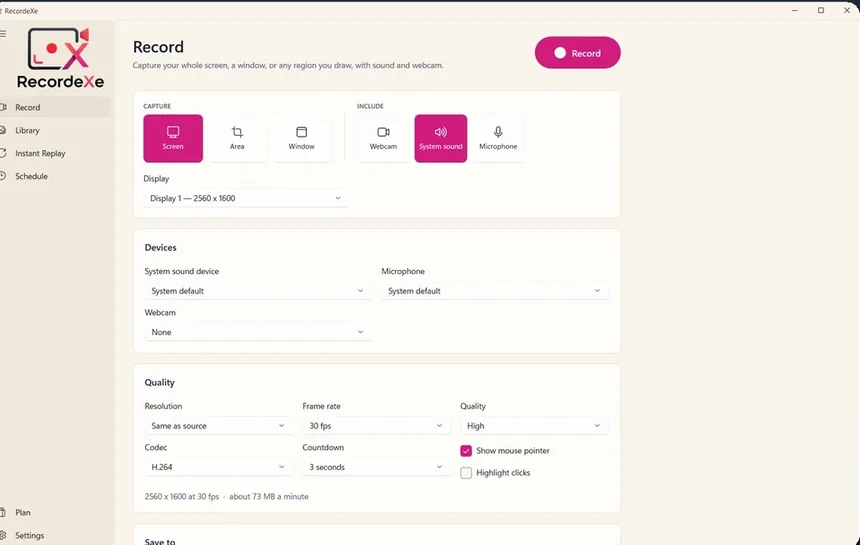
There's a small detail at the bottom I've come to appreciate: an estimate of the file size before you begin. It's the kind of thing you don't notice until you've filled a drive with a 4K recording of a spreadsheet.
You press F9. A short countdown, and you're recording. The floating controls stay out of the video, which fixes take number two. And because RecordeXe writes the file as it goes, a crash or a dead battery still leaves you something you can play. That fixes take number three.
The part where the video gets good
Most recorders hand you a raw file and leave. RecordeXe opens an editor the moment you stop.
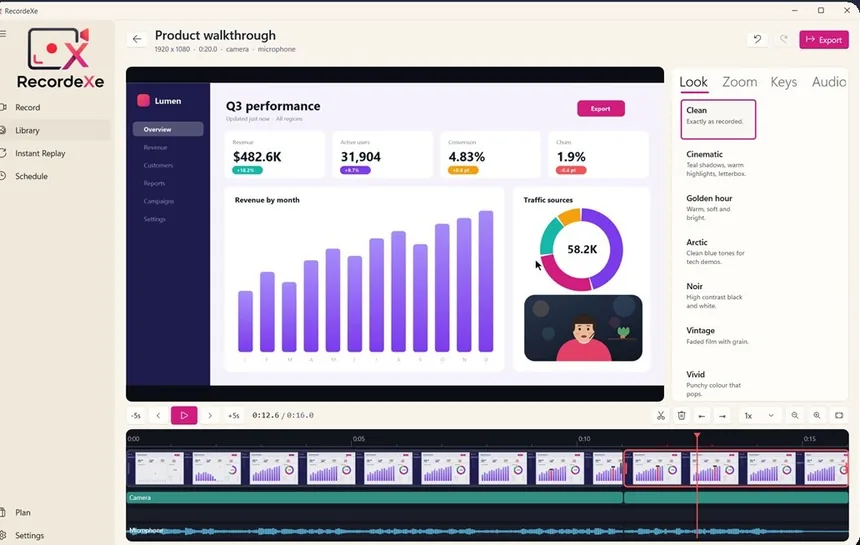
This is where the Slack notification disappears. Split at the playhead, delete the three seconds you don't want, and move on. If you said "um, wait, sorry" in the middle, that's gone too.
Then there's the bit that makes people ask how you edited it. Every click you made while recording can become a smooth zoom toward what you clicked. You didn't plan it, you didn't keyframe anything, but the viewer's eye goes exactly where it should. If you pressed a shortcut like Ctrl + Shift + S, it can appear on screen as a small label, so nobody has to ask "wait, what did you just press?" Only shortcuts are recorded, never regular typing.
The fan hum? On-device noise removal takes it out. Your voice stays; the fridge goes.
I'll be honest about one thing, because the app is too. Your microphone and your screen are captured separately, so the sync is very close, within about a tenth of a second, but not always perfect. There's a slider to nudge it. I'd rather know that than find out later.
Getting it out the door
Remember the file that was too big to email? When you export, you can just tell RecordeXe how many megabytes you have to work with, and it fits the video under that limit.
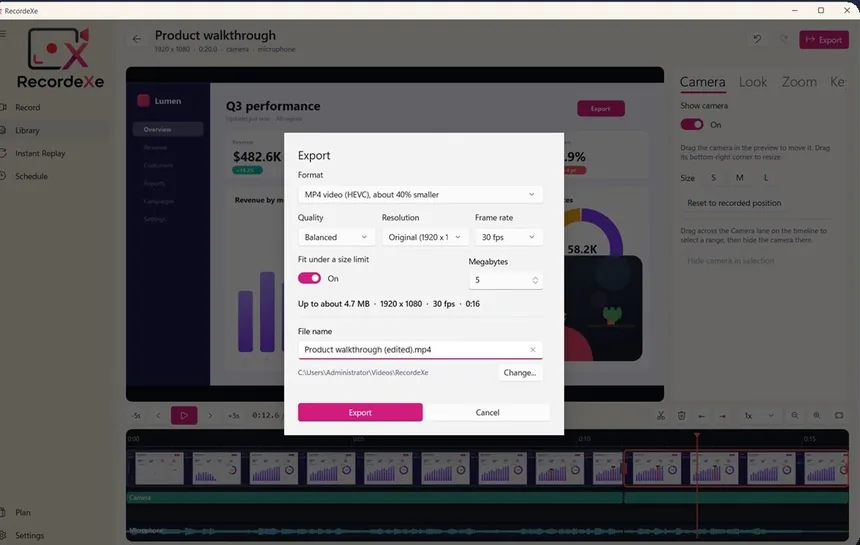
MP4 for anywhere, a GIF for a quick reply in chat, or just the audio. Your original recording stays untouched either way.
And for the things that don't need a video
Sometimes a screenshot with an arrow is all anyone needs. Press Print Screen, pick an area, and mark it up with an arrow, a box, some text, or a blur over anything private.
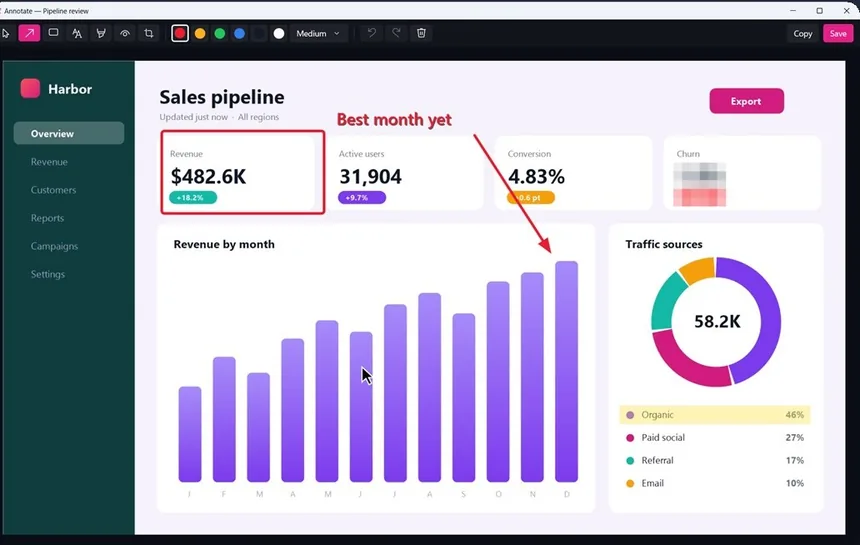
On Windows 11, the Snipping Tool normally owns that key, and RecordeXe tells you where to switch it off.
What it isn't
RecordeXe isn't a film studio. It won't replace Premiere, and it isn't trying to. It needs a free account to sign in, even though your recordings never leave your PC. Scheduled recordings only work while the app is running. The free version keeps a watermark and caps videos at five minutes, and the things that make videos look polished, like auto-zoom and voice cleanup, sit in Pro, which is $2.99 a month or $19.99 a year.
Back to that afternoon
The dashboard video I mentioned at the start is exactly the kind of thing RecordeXe was built around. Not a big production. Just a clear, short recording that a colleague can watch once and understand, made in about the time it takes to explain it.
That's really all we wanted: for the two-minute video to take two minutes.
If that sounds like your kind of afternoon, RecordeXe is on the Microsoft Store, with a seven-day trial that unlocks everything.